
- Login as an HQ Admin, Studio Manager, or Instructor on the Reformer Pro Portal.
- From the Dashboard, navigate to Workout Builder.
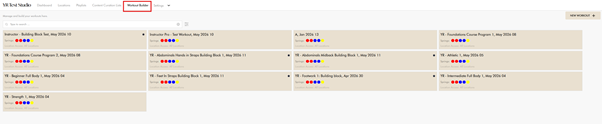
- Click the “New Workout +” button.
- In the New Workout popup:
- Click the “Add Exercise” or “Building Block +” button.
- Add exercises to the workout and configure all required information, including:
- Exercise duration
- Spring settings
- Any additional exercise details
- Once the workout setup is complete, enable the “Allow using as Building Block” toggle.
- Click Save and Publish.
-
- Enter the Workout Name.
- Select the reformer type:
- YRS – Your Reformer Studio
- YRO – Your Reformer Original
- YRE – Your Reformer Envy
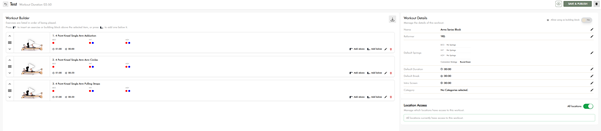
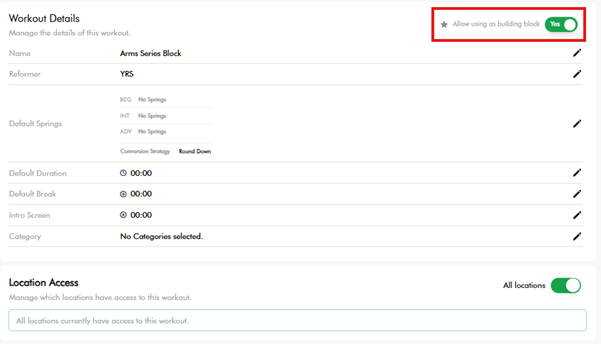
This will save the workout as a Building Block.
Important Notes
- Building Blocks are not shown on the calendar for class selection as standalone workouts.
- They are saved as quick templates that can be added into new workouts during workout creation.
- For example, a Arms Series Block can be quickly inserted into a full-body workout to speed up programming.
Identifying Building Blocks
- Building Blocks created in the Workout Builder will display a Star Icon on the Building Block card.