
- Login as HQ Admin to the Reformer Pro Portal.
- Go to Settings > Manage Account.
- Find the Instructor Pro Device Display section within the settings page.
- Upload the logo to be displayed on the Instructor Pro device.
- The Intro Screen is the Session Starting Screen shown before the workout begins.
- This screen can be uploaded and configured per studio.
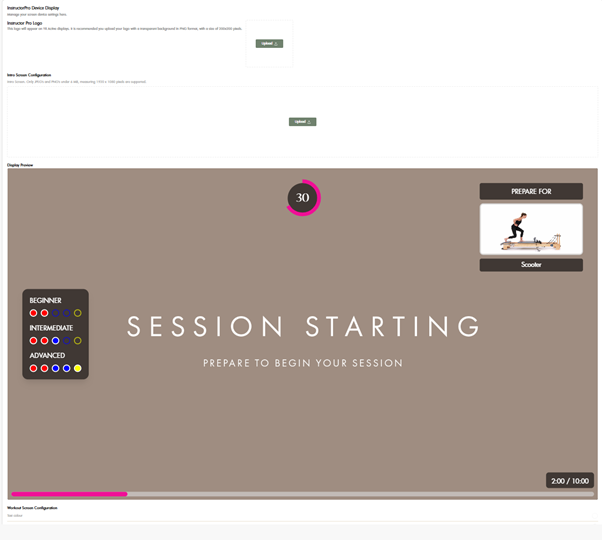
Upload Instructor Pro Logo
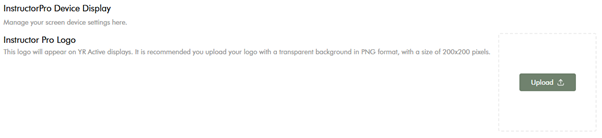
Intro Screen Configuration
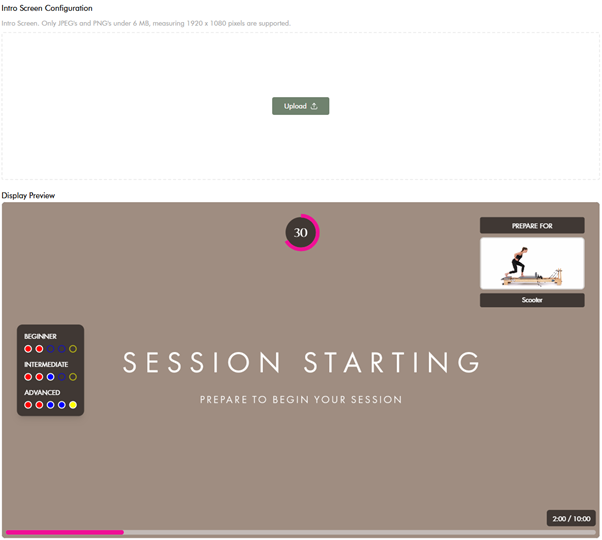
Workout Screen Configuration
Workout Screen Configuration allows branding and customisation of the active workout screen colours.
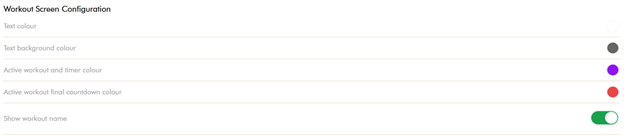
Available configuration options:
- Text Colour
Select a Hex colour for workout text. - Text Background Colour
Select a Hex colour for the text background. - Active Workout and Timer Colour
Select a Hex colour for the active workout timer display. - Active Workout Final Countdown Colour
Select a Hex colour for the final countdown timer. - Show Workout Name
Toggle On or Off to show or hide the exercise name in the upcoming exercise preview. - Display Preview
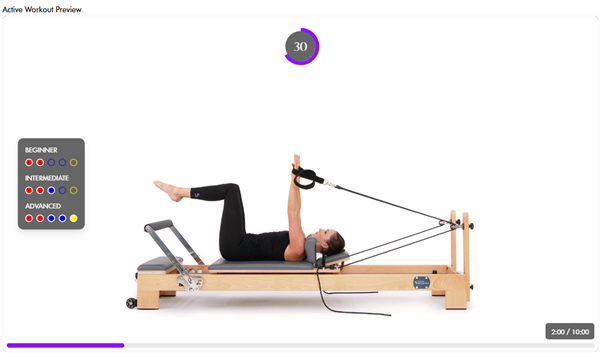
- Active Workout Preview
- Shows a live preview of all selected colour customisations during exercise playback.
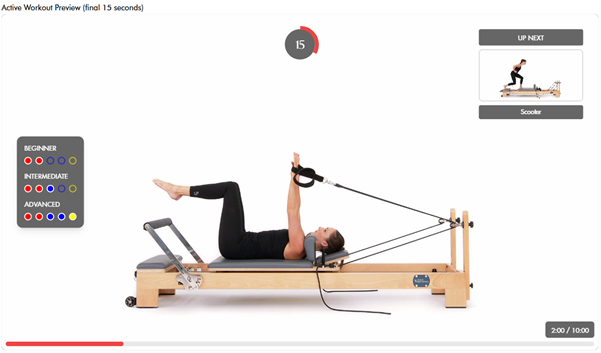
- Active Workout Preview (Final 15 Seconds)
- Displays the screen and selected colours shown during the final 15-second countdown before transitioning to the next exercise.
Break Screen Configuration
The Break Screen is the transition screen shown between exercises when a break duration has been configured within the workout.
Available Configuration
- Break Workout and Timer Colour
Select a Hex colour for the break timer and workout display.
Display Preview
A preview is provided to show how the Break Screen will appear with the selected colours.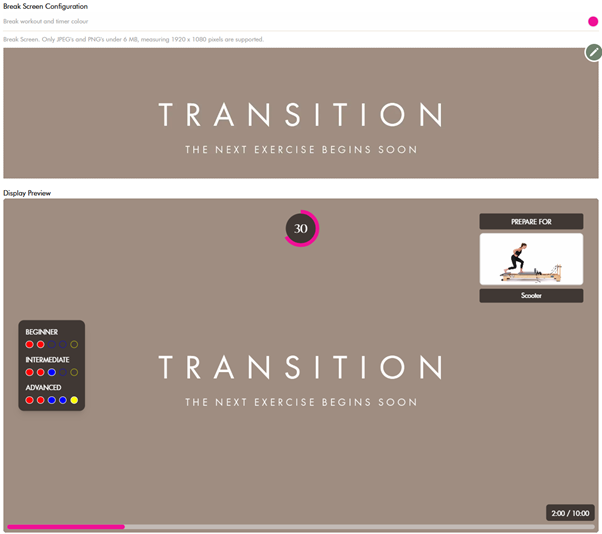
Outro Screen Configuration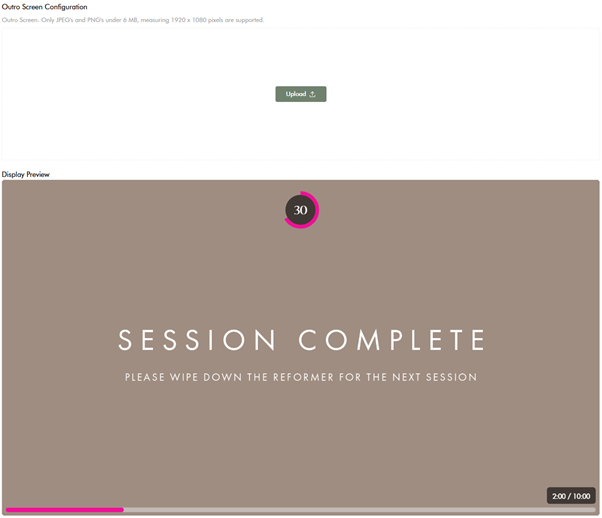
Upload the screensaver displayed at the end of the workout session.
Display Preview
A preview is provided to show how the Outro Screen will appear once configured.
The Outro Screen is displayed at the end of the workout.
Note
All screensavers and uploaded images must meet the following requirements:
- JPEG or PNG format only
- Maximum file size: 6 MB
- Supported resolution: 1920 × 1080 pixels